Showing posts with label arm. Show all posts

Wednesday, May 1, 2019

How to fix: Missing third party device support for nRF51422xx

In this post we will address the following error, which can happen even if you do have the packs installed for the nRF51/52.

You will see something like this:
"Missing Devices - The Project references devices, files or libraries that are not installed.  Download and install: Third Party Device Support for Nordic Semiconductor: nRF51422_xxAC" or similar.


After you've pressed "OK" on both dialogue boxes, the first thing to check (although you may have already done this) is locate the pack installer and install the packs for the devices that are missing.


1. Click the pack installer.


2. Locate the manufacturer and specific device you are using on the left-hand pane of the Pack installer (click for larger image).


3. On the right-hand pane, select the 'Packs' tab, and install all the packs.  In this example, you can see drivers, soft devices, software modules and so on.  Install them all.  From the "Generic" section below, install all the ARM (CMSIS, etc.) packs.  Ignore all the other generic packs.  Do not install any examples from the 'Examples' tab.


4. Close down Keil uVision and re-open your project file.  If the error no longer appears then you can stop reading here.  If the same error message re-appears, the most likely culprit is that you're opening a project file from an older version of uVision that what you have installed on your machine.  Click "Project > Manage > Migrate To...".

Then you'll get a dialog box telling you that your project file's migration has completed.


5. Close down your uVision IDE.  You'll notice a new project file.  Open that.  Now you'll (hopefully) notice that the device support error message has gone.


Tuesday, October 21, 2014

Zmodem and minicom


Zmodem is a great "emergency backup" way of getting files on and off your target board when all other methods (SD card, ethernet, etc.) have stopped working or you don't have those functions yet.

In order to use Zmodem with Minicom, you need to first cross-compile the 'lrzsz' source code.


What happens if I can't get this file onto my target to begin with?   If this your situation, don't panic!  See my other serial transfers post.


Do a google search for lrzsz-0.12.20.tar.gz, untar it, and configure it with the following command:

CC=arm-linux-uclibc-gcc ./configure --host=arm-linux-uclibc --prefix=/home/andrew/lrzsz_out/

You'll obviously need to replace the CC, --host and --prefix with your own.  Then run:

make; make install

From all the binaries which are built, you're only going to need lrz (for receiving) and lsz (for sending).

If you want to receive a file (that is, get a file onto your target board), you first run the ./lrz binary from anywhere on the target's filesystem, and you'll get a message 'waiting to receive' (along with some ascii garble).


Then you press ctrl+a+z and then s , and then choose 'zmodem'.


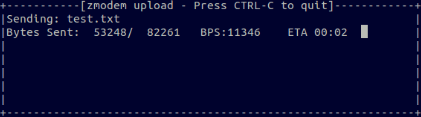
After you select 'zmodem' and choose your file from the file browser, you'll see the file uploading to your target, with an ETA (time left).


Sending works similarly, except you use the ./lsz binary and select "receive" from the minicom menu instead.